Troubleshooting
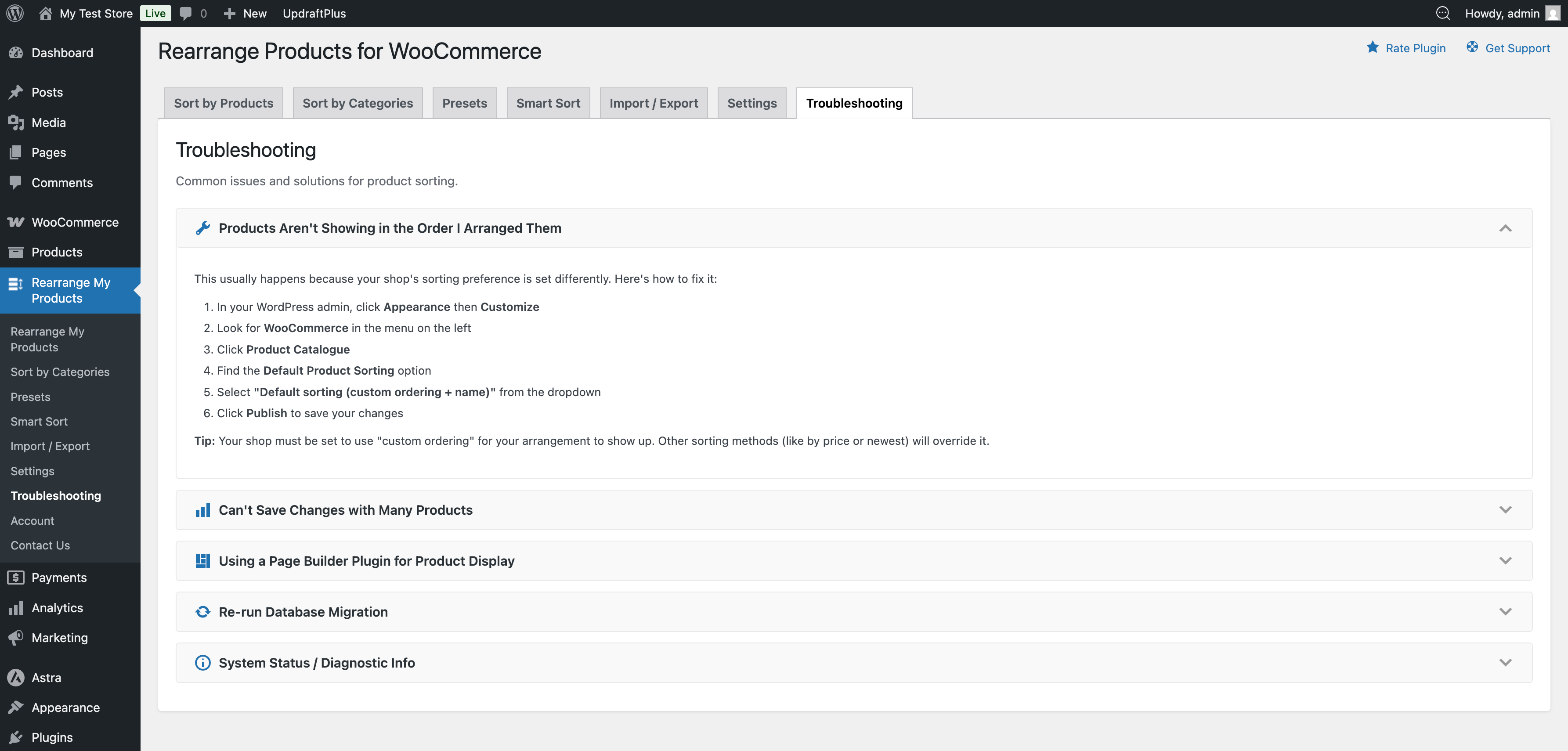
Common issues and how to resolve them. You can also access troubleshooting tools from Admin → Rearrange Products → Troubleshooting in your WordPress admin.
Products Not Showing in Custom Order
The most common issue. If your rearranged products aren't displaying in the order you set:
- Go to Appearance → Customize
- Select WooCommerce → Product Catalogue
- Find Default Product Sorting
- Set it to "Default sorting (custom ordering + name)"
- Click Publish
If it's already set correctly, try clearing any caching plugin you're using (WP Super Cache, W3 Total Cache, etc.).
Server Resource Limits
If you have a large number of products and changes are not saving, your server may be hitting resource limits.
Contact your hosting provider and ask them to increase:
memory_limit— Recommended:256Mor highermax_execution_time— Recommended:300or highermax_input_vars— Recommended:5000or higher (important for saving many products at once)
After your hosting provider updates these settings, try saving the product order again.
Page Builder Compatibility
If you're using a page builder plugin (Elementor, Divi, WPBakery, etc.), the custom sort order may not apply to product elements within the builder.
Why? Page builder plugins often have their own product query settings that work independently of WooCommerce's default sorting.
What to do:
- Check your page builder's product widget/module for sorting options
- Look for a "Custom order" or "Menu order" option in the product display settings
- If your page builder doesn't support menu order sorting, contact their support team
The plugin works seamlessly with standard WooCommerce shop pages, category pages, and WooCommerce shortcodes. Page builder compatibility depends on the builder respecting WooCommerce's default sorting.
Re-run Database Migration
If you've upgraded from an older version and products aren't appearing correctly, you may need to re-run the database migration.
Go to Admin → Rearrange Products → Troubleshooting and look for the "Re-run Database Migration" option. This will re-migrate your product sort order data to the current storage format.
Only use this option if you're experiencing issues after an upgrade. It is safe to run multiple times.
System Status / Diagnostic Info
When filing a support request, include your system diagnostic information:
- Go to Admin → Rearrange Products → Troubleshooting
- Open the "System Status / Diagnostic Info" section
- Click "Copy to Clipboard"
- Paste the information into your support ticket
This includes details about your WordPress version, WooCommerce version, PHP version, active plugins, and other information that helps diagnose issues faster.