Installation & Activation
Installing from WordPress.org
- Go to your WordPress Admin Dashboard
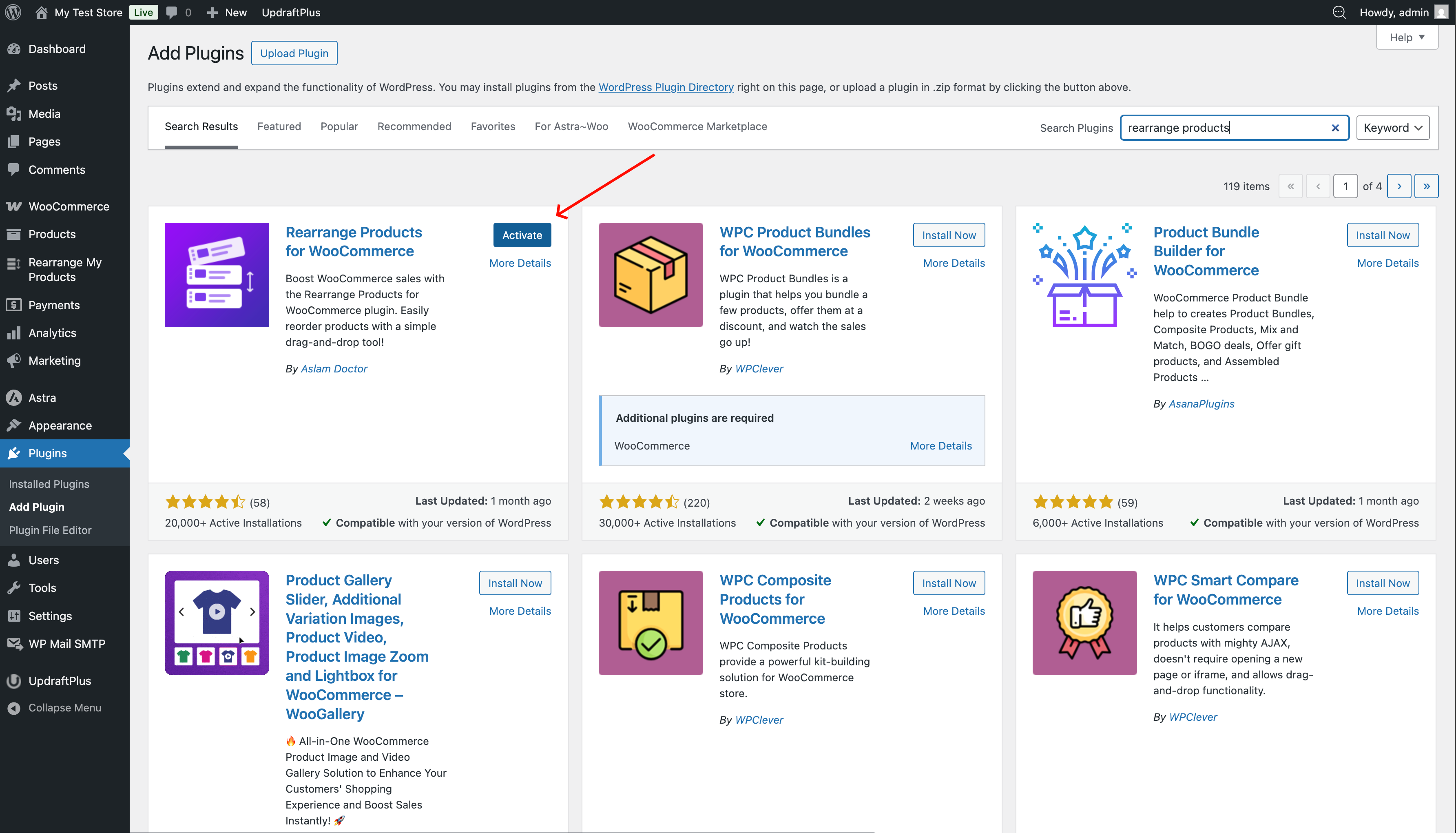
- Navigate to Plugins → Add New
- Search for "Rearrange Products for WooCommerce"
- Click Install Now, then Activate
warning
If WooCommerce is not installed and activated, the plugin will not activate. Make sure WooCommerce is active first.
Installing Manually
- Download the plugin ZIP file from WordPress.org
- Go to Plugins → Add New → Upload Plugin
- Choose the downloaded ZIP file and click Install Now
- Click Activate
Upgrading to Pro
- Purchase a license from rearrangeproducts.com
- After purchase, you'll be guided through the installation process
- The Pro version adds Smart Sort, Sort Presets, and Import/Export features
After Activation
Once activated, you'll find a new Rearrange Products menu item in your WordPress admin sidebar. Before you start sorting, complete the Initial Setup to ensure WooCommerce respects your custom order.