Initial Setup
Before sorting products, you need to configure WooCommerce to use custom ordering. Without this step, your rearranged product order will not display on the frontend.
Set WooCommerce Default Sorting
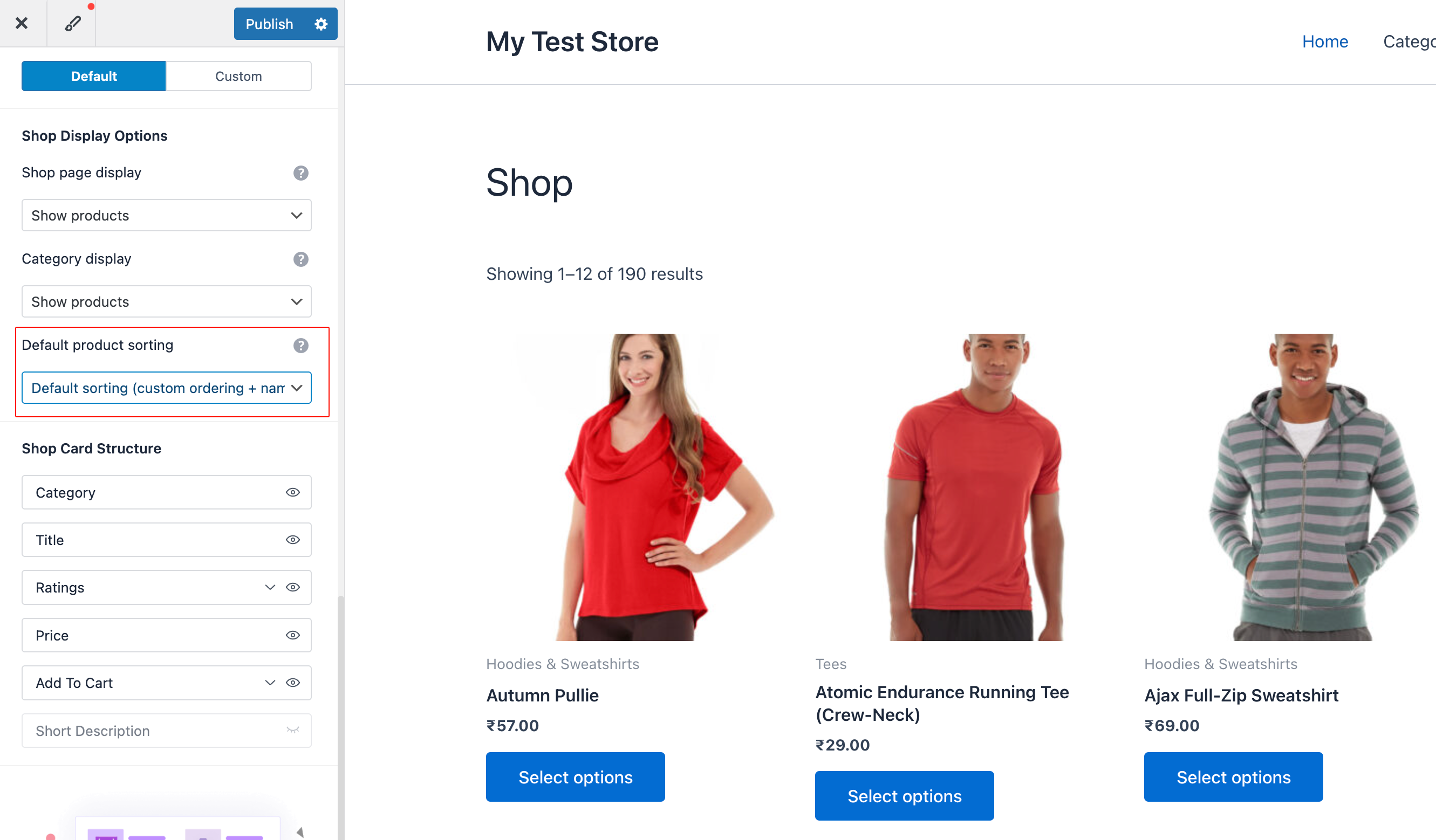
- Go to Appearance → Customize
- Select WooCommerce → Product Catalogue
- Find Default Product Sorting
- Set it to "Default sorting (custom ordering + name)"
- Click Publish to save
tip
This is the most common reason products don't appear in the order you set. If your custom order isn't showing up on the shop page, check this setting first.
Navigate to the Plugin
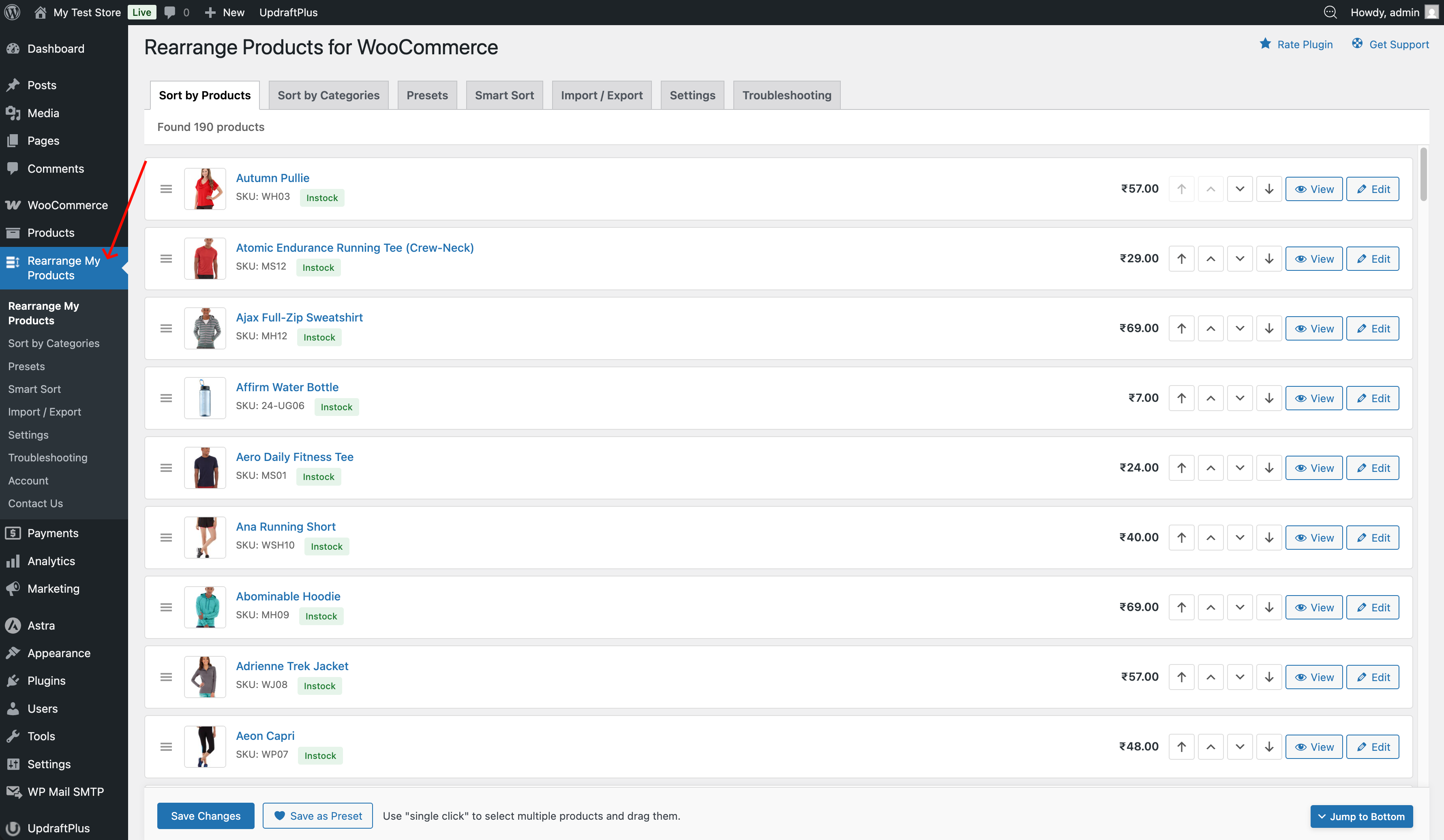
Go to Admin → Rearrange Products in your WordPress admin sidebar. You'll see the main plugin interface with tabs:
- Sort Products — Reorder all products globally
- Sort by Categories — Set per-category product order
- Settings — Configure sorting scope
- Troubleshooting — Diagnostic tools and common fixes