Category-Specific Sorting
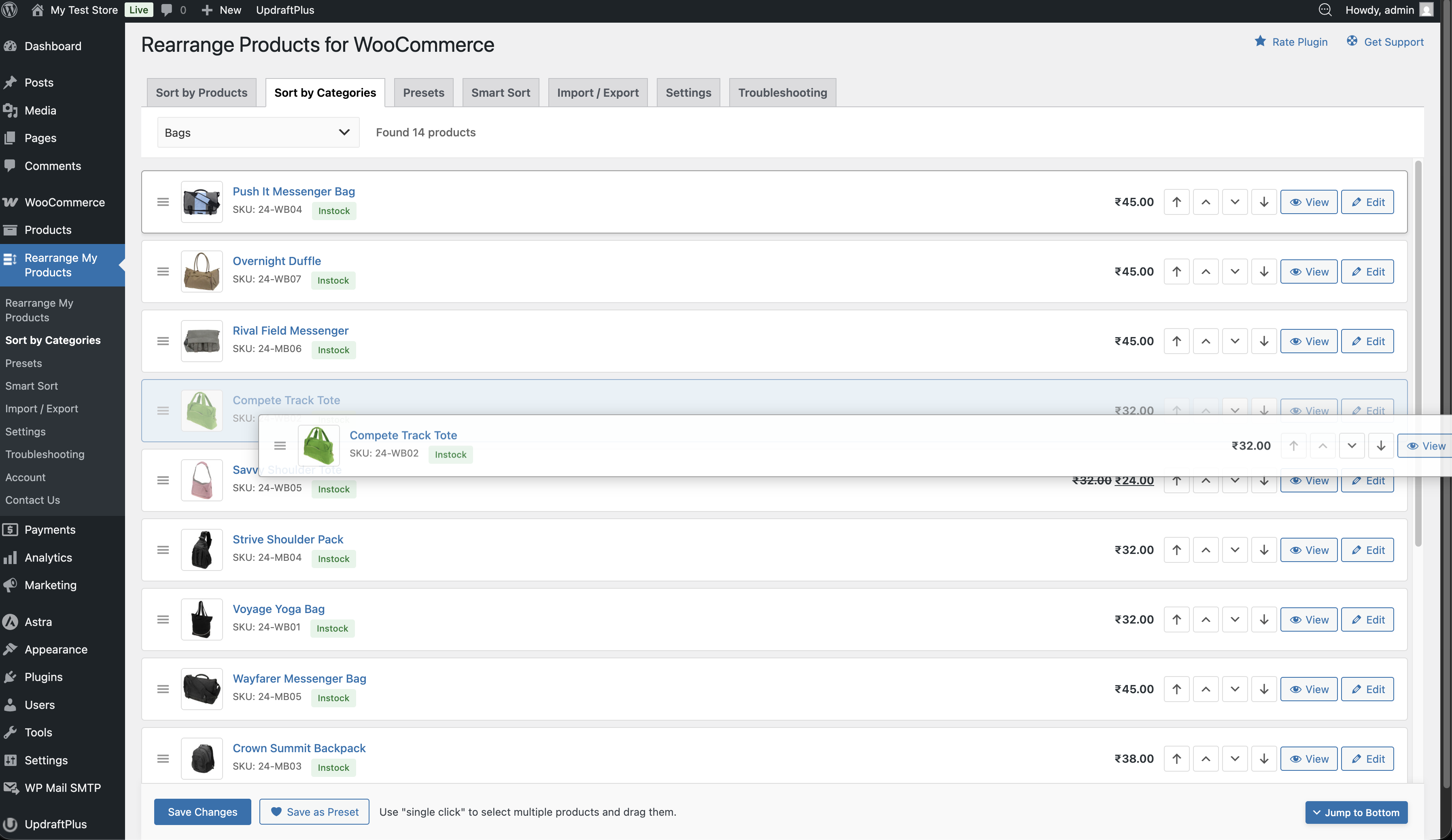
The Sort by Categories tab lets you set a unique product order for each product category. When a customer visits a category page, they'll see products in the order you defined for that specific category.
How It Works
Category-specific sort orders are stored separately from the global sort order (as product metadata). When a visitor views a category page, the plugin checks if a custom order exists for that category and applies it. If no category-specific order exists, products fall back to the global sort order.
Setting Category Order
- Go to Admin → Rearrange Products
- Click the Sort by Categories tab
- Select a category from the dropdown
- Drag and drop products into your preferred order
- Click Save
Subcategories
Subcategories are shown nested in the dropdown. Each subcategory can have its own independent sort order. Products in a subcategory are not affected by the parent category's sort order.
Category Shortcut
You can also access category sorting directly from the Products → Categories page in WooCommerce. Each category has a "Sort Products" link that takes you straight to the sorting interface for that category.
Fallback Behavior
| Scenario | What Happens |
|---|---|
| Category has a custom sort order | Products display in the custom order |
| Category has no custom sort order | Products fall back to global sort order (menu_order) |
| No sorting has been set at all | WooCommerce default sorting applies |
Important Notes
- Category sort orders are removed when you uninstall (delete) the plugin
- Deactivating the plugin temporarily disables category-specific sorting, but the data is preserved
- Reactivating the plugin restores all category-specific sort orders