Sort Presets
Pro Feature
Sort Presets are available in Rearrange Products for WooCommerce Pro.
Sort Presets let you save your product arrangements and switch between them instantly. This is perfect for seasonal promotions, A/B testing different product orders, or maintaining different arrangements for different occasions.
Creating a Preset
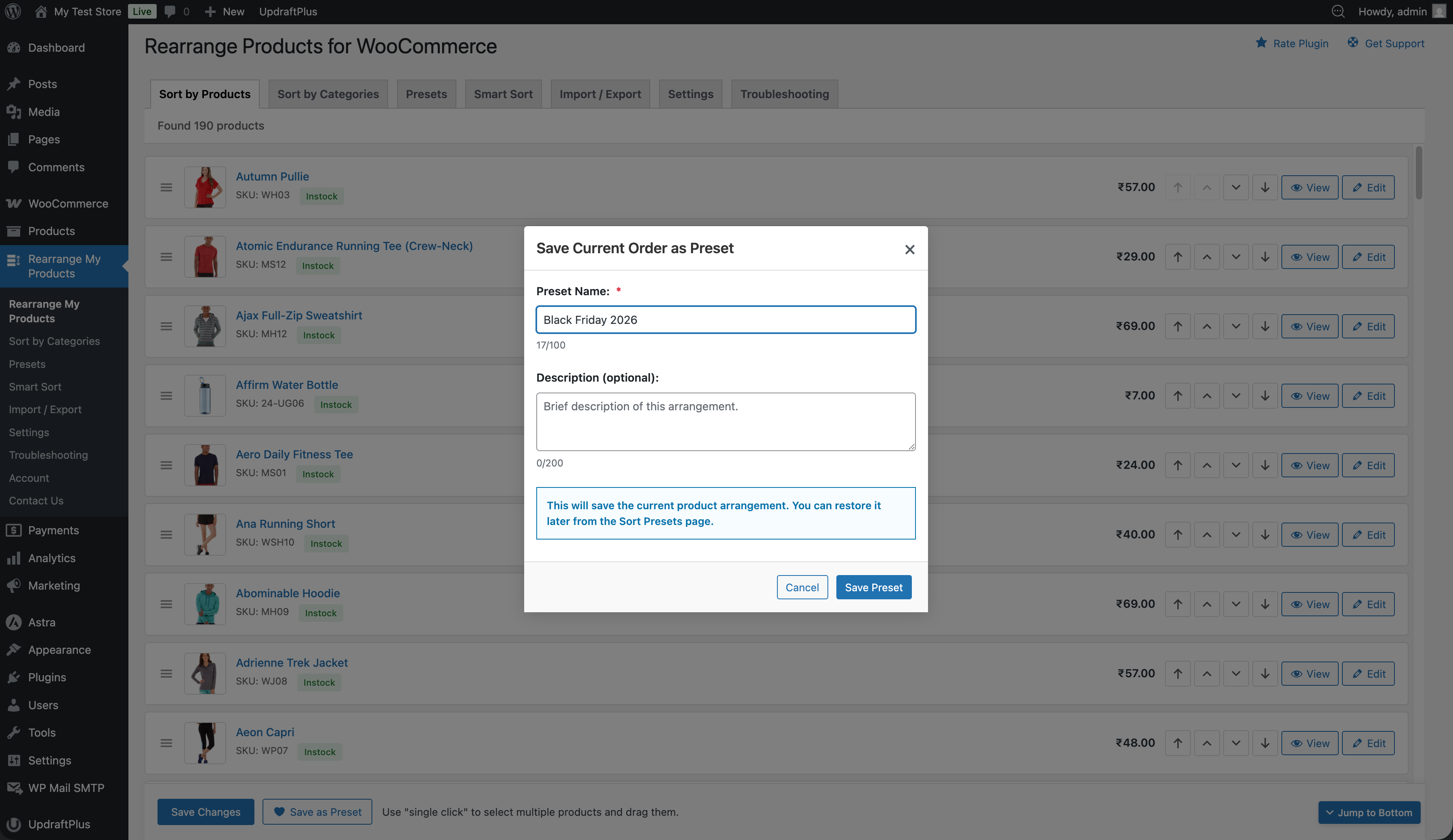
- Arrange your products in the desired order (using drag-and-drop or Smart Sort)
- Click Save as Preset
- Enter a name for the preset (e.g., "Summer Sale Layout")
- Optionally add a description
- Click Save
Managing Presets
From the Presets panel, you can:
| Action | Description |
|---|---|
| Apply | Load a preset's product order and apply it to your shop |
| Duplicate | Create a copy of a preset to use as a starting point for variations |
| Edit | Update the preset's name or description |
| Delete | Permanently remove a preset |
| Search | Filter presets by name for quick access |
Preset Scope
Presets work with both sorting modes:
- Global presets — Save and restore the order of all products
- Category presets — Save and restore the order within a specific category
When you apply a preset, it applies to whichever scope (global or category) you're currently viewing.
Use Cases
- Seasonal promotions: Create presets for "Holiday Layout", "Summer Sale", "Back to School", etc.
- A/B testing: Save two different product arrangements and switch between them to see which performs better
- Flash sales: Quickly apply a preset that features sale items, then revert to your normal layout when the sale ends
- Multiple staff: Different team members can create and share arrangements without overwriting each other's work
Tips
- Presets are stored in the database and persist across sessions
- There is no limit to the number of presets you can create
- Applying a preset immediately changes the product order — remember to save if you want to keep it